
How To Use Digital Backgrounds and Textures in Photoshop
Digital backgrounds, overlays, and textures are powerful tools for photographers who want creative flexibility without the expense, storage requirements, or limitations of physical backdrops.
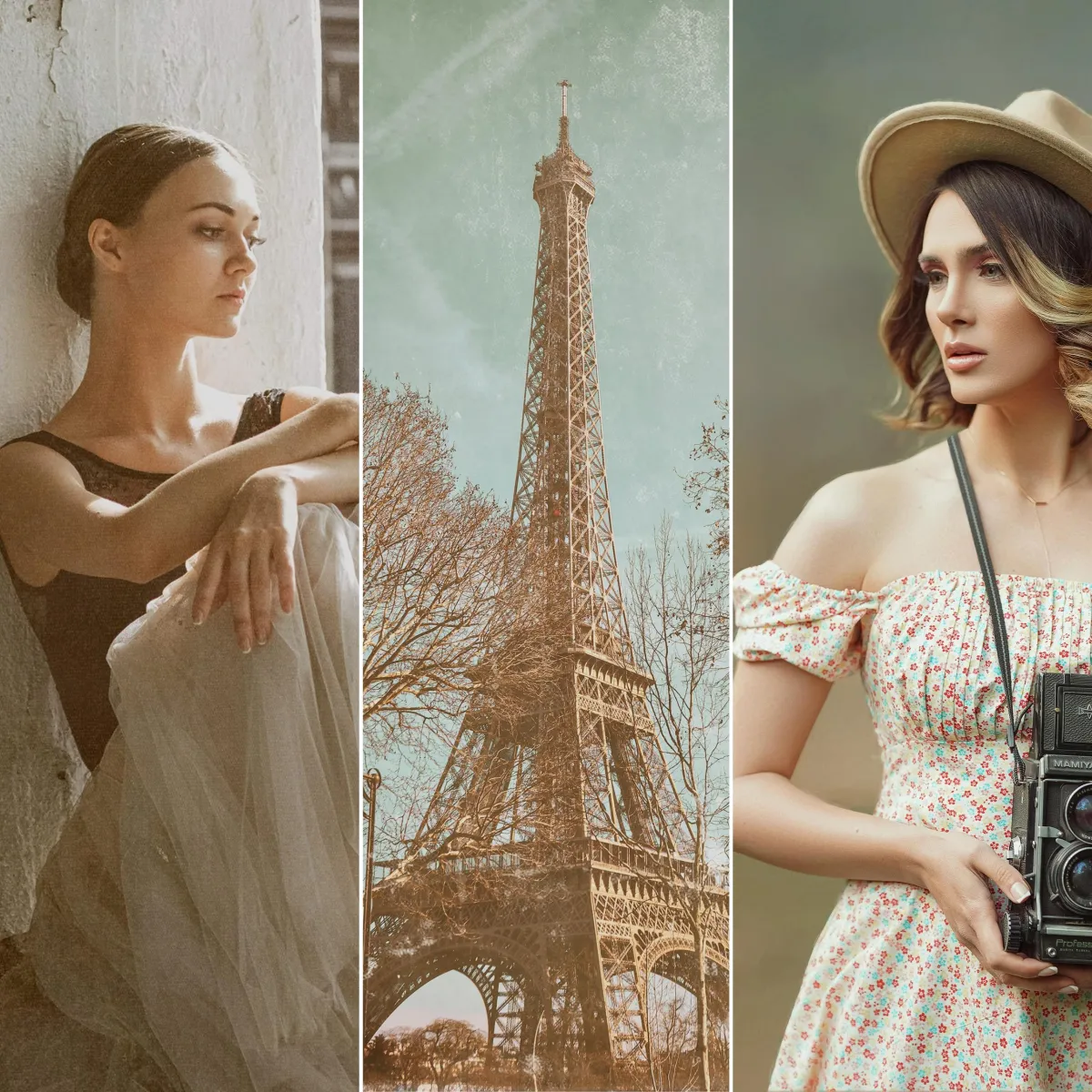
By using digital assets in Photoshop, photographers can change the mood, color palette, or environment of an image after the shoot. This includes adding skies, light effects, painterly textures, botanical backgrounds, subtle grunge, or full environmental scenes that were not present at capture.
Digital backgrounds are also a core component of modern headshot photography, where efficiency, consistency, and professional polish are essential.
In this tutorial, you will learn practical ways to use digital backgrounds, overlays, and textures in Photoshop using botanical-inspired assets as examples. The techniques apply equally to portraits, fine art photography, and creative composites.
Why Use Digital Backgrounds and Textures in Photoshop?
Photographers use digital backgrounds and textures for both creative and practical reasons.
They allow you to:
Create visual interest without purchasing physical backdrops
Work in small studio spaces or on location with limited control
Change color tones and mood without reshooting
Add painterly or fine art elements to portraits
Maintain consistent results across multiple sessions
Digital backgrounds and textures are especially useful for photographers who want a repeatable workflow that balances creativity with efficiency.
For professional headshot photographers, curated collections such as the Ultimate Headshot Background Collection provide studio-quality digital backdrops designed specifically for realistic headshot photography. For a deeper look at how digital backgrounds are used specifically in modern headshot photography, visit our Digital Backgrounds for Professional Headshots resource guide.
Bring Your Digital Assets Into Photoshop
Before editing, organize your digital backgrounds, overlays, and textures so they are easy to access during your workflow.
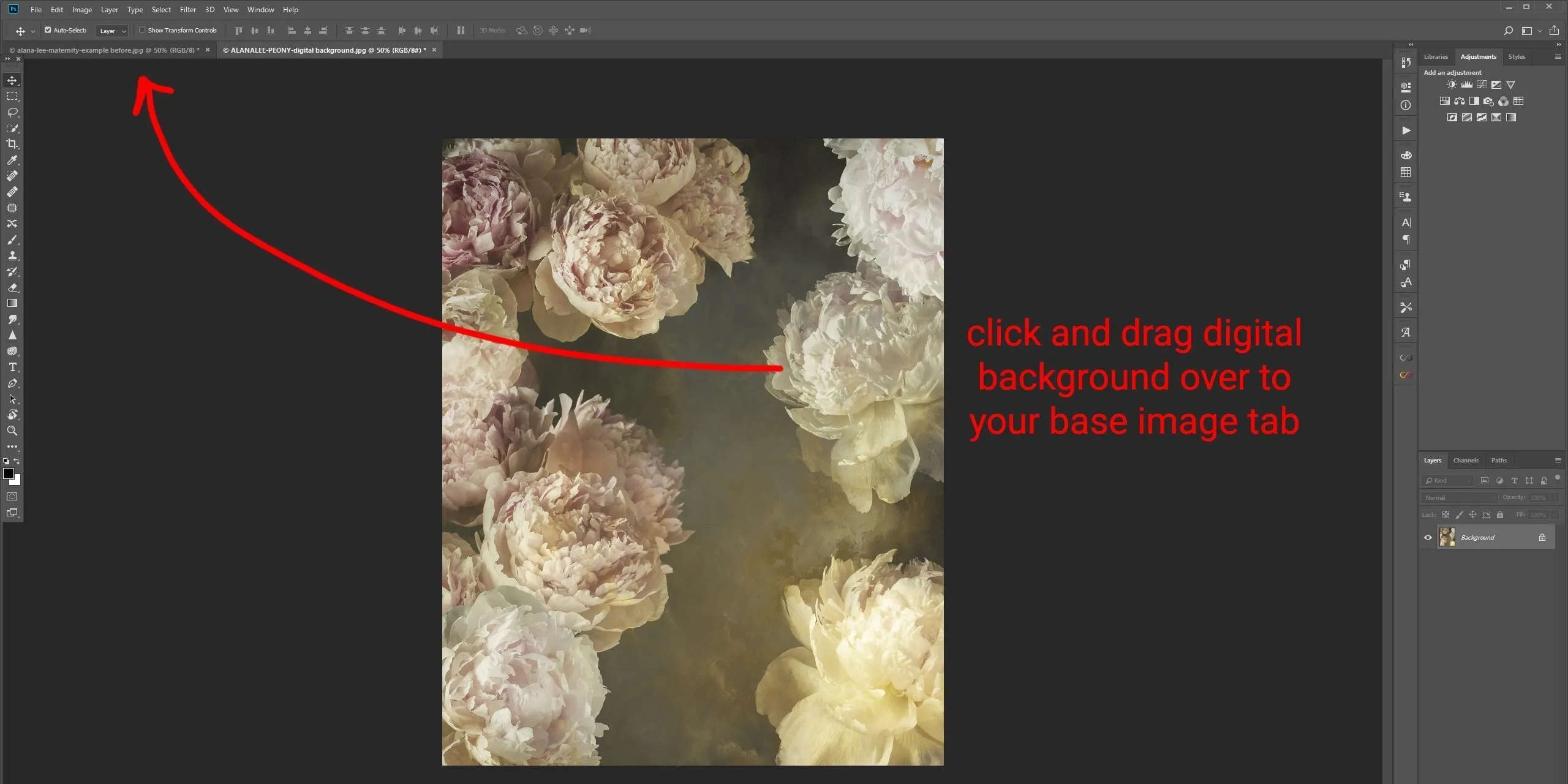
Open your base image in Photoshop. Then open the digital background, overlay, or texture you want to use.
You can add the asset to your image by:
Dragging and dropping the file onto your base image
Using Edit > Paste after copying the asset
Using File > Place Embedded to maintain full resolution
Once added, the digital background or texture will appear as a new layer above your base image.
For ready-made artistic overlays for portraits, fine art images, or creative composites, the Creative Photography Overlays Collection gives you a full library of high-resolution effects you can add in seconds.
Adjusting Digital Backgrounds, Overlays, and Textures
After placing your digital asset, the next step is blending it naturally with your image. There are two primary methods photographers use.
Method 1: Adjust Opacity and Use Layer Masks
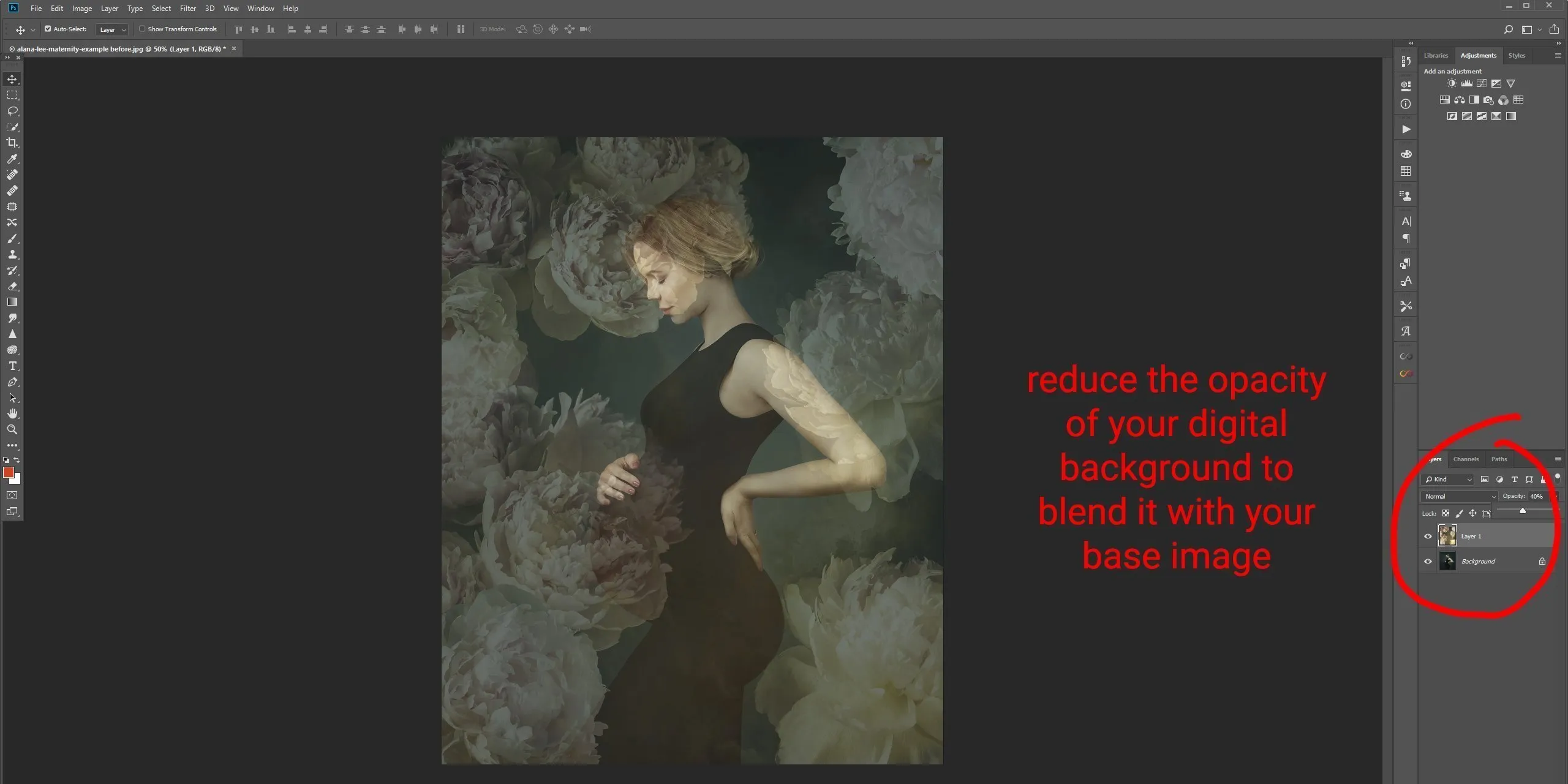
Reducing the opacity of a background, overlay, or texture allows it to blend more subtly with the image below.
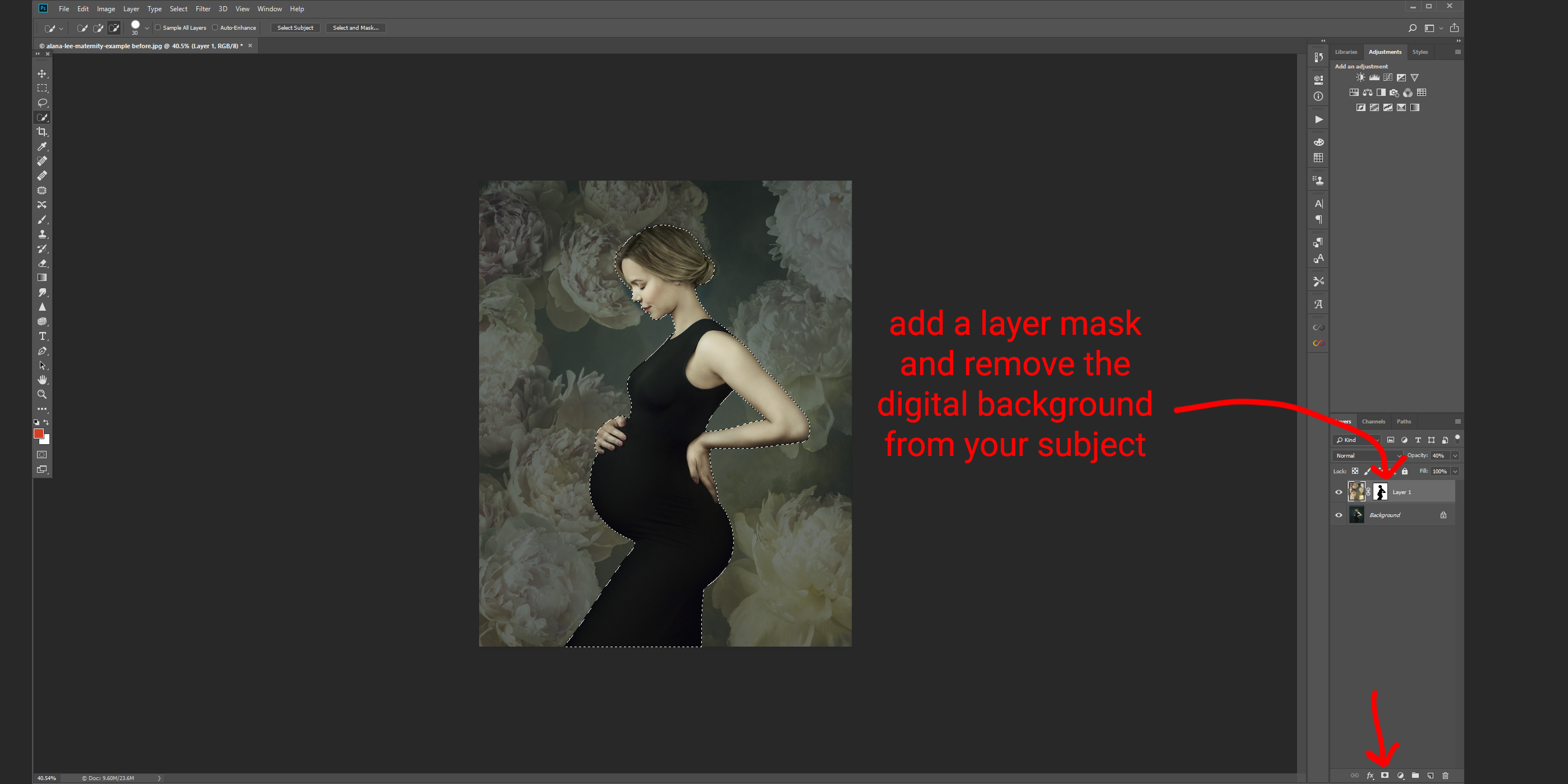
Lower the opacity in the Layers panel until the effect feels natural. For more control, add a layer mask to the digital asset and remove it from areas such as skin, clothing, or facial features using a soft brush.
Layer masks allow non-destructive editing, meaning you can refine or reverse your adjustments at any time.
Make sure your digital background layer is active and create a layer mask by selecting Layer>Layer Mask>Reveal all (or click the button that looks like a little rectangle with the circle inside it at the bottom of the layers panel). This will add a white layer mask to your background image. Ensure you click on the white layer mask, select a black brush, and paint over any areas you want to hide or remove the digital background, overlay or texture. You can adjust the softness/hardness and opacity or flow of your brush to control how little or how much of the layer you reveal or hide. The great thing about using the layer mask method is that if you make a mistake then you can simply change your brush back to white and paint back over your mask to reveal more of the background.
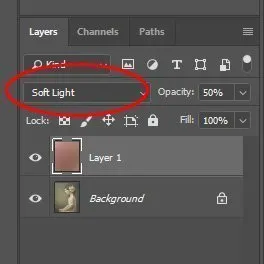
Method 2: Change the Blend Mode
Blend modes change how a layer interacts with the layers beneath it.
Common blend modes used with digital backgrounds and textures include:
Multiply for darkening and depth
Screen for lightening effects
Overlay for contrast and richness
Soft Light for subtle tonal blending
Experimenting with blend modes is often the fastest way to find an effect that complements your image. In many cases, combining a blend mode with reduced opacity produces the most natural result.
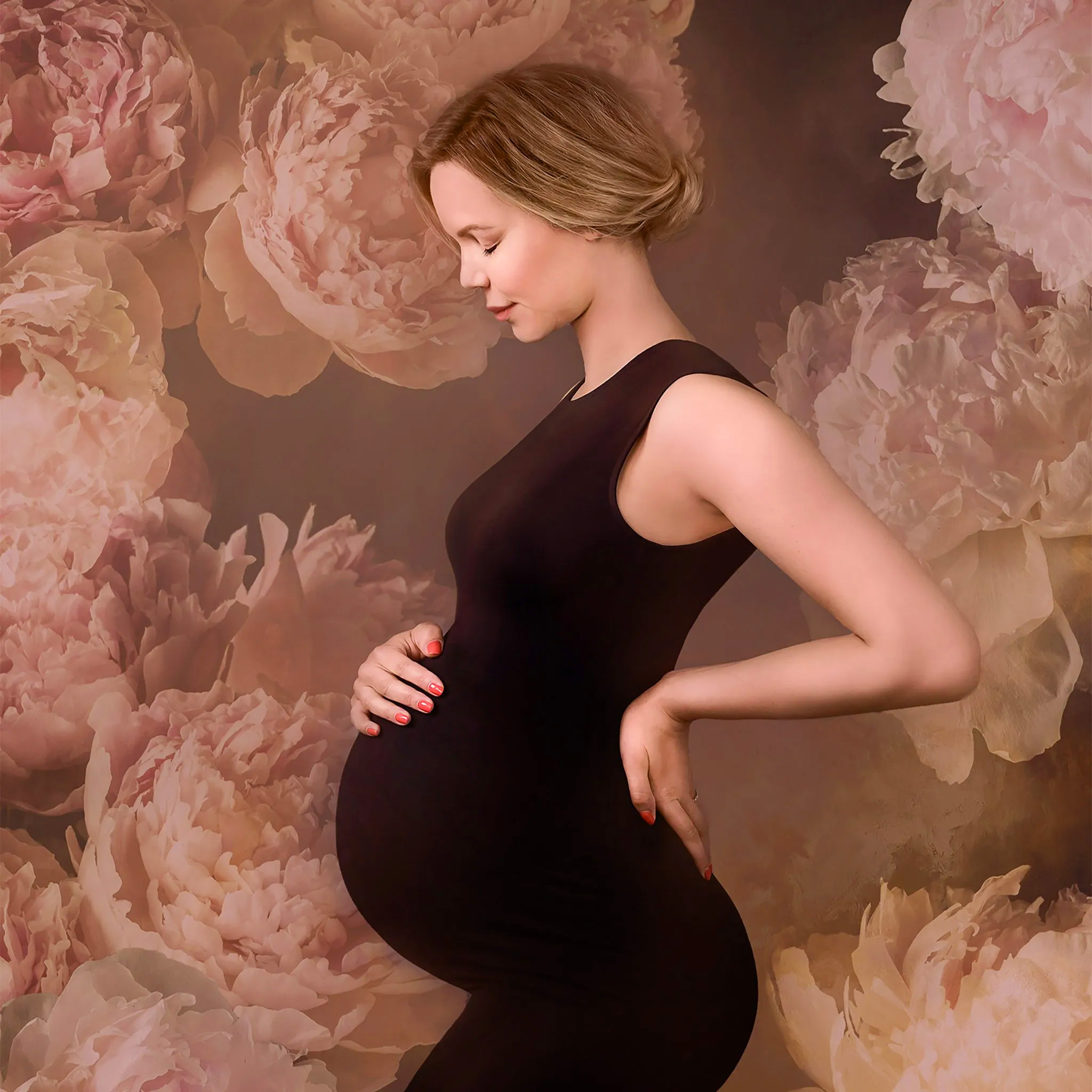
In the example below we have used one of the digital overlays from the Peony Collection in softlight mode at 50% over the entire base image to change the color tones and create a warmer mood and feeling.
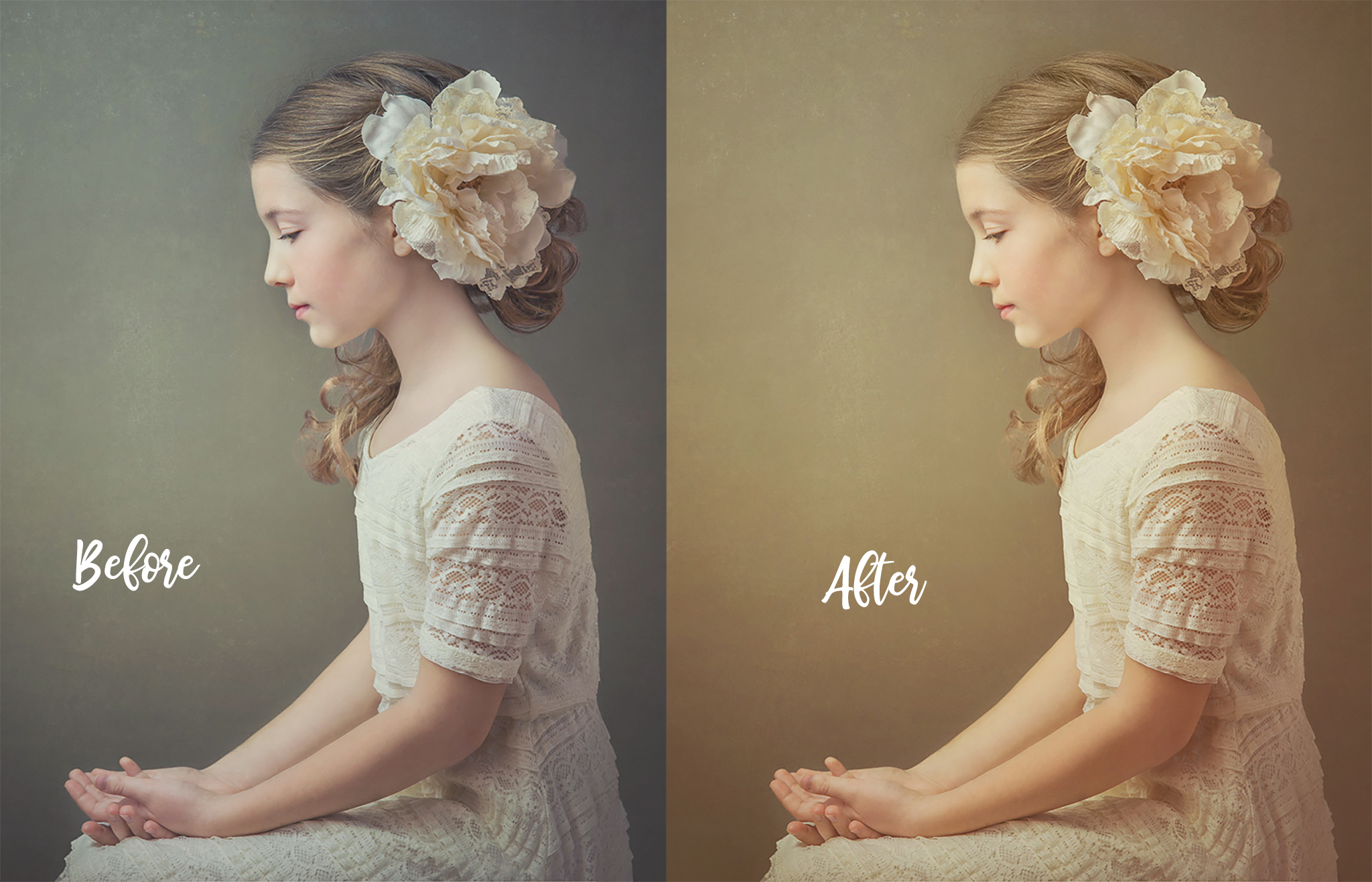
These are just a few of the ways you can use digital backgrounds, textures and overlays to enhance your photography, digital art or graphic design work. Experiment with different methods to discover what ones suit your work.
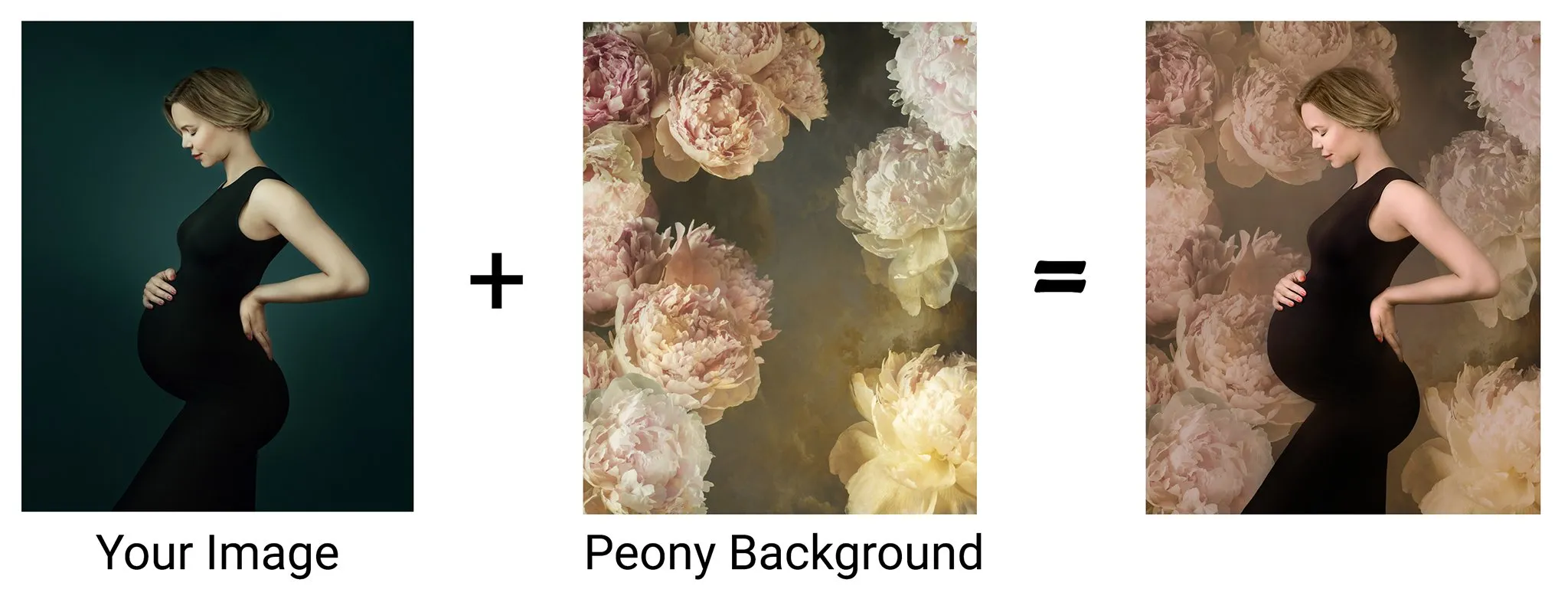
Below is the finished example, with a peony flower digital background used on a maternity portrait.
Combining Backgrounds, Overlays, and Textures
Digital backgrounds, overlays, and textures can be used independently or layered together.
For example:
A digital background can establish environment
A texture overlay can unify color and add depth
A subtle light overlay can enhance mood
These techniques are widely used in fine art portraiture, maternity photography, and painterly editing styles. Collections such as the Ultimate Fine Art Editing Collection from The Imaginator Studio combine painterly backgrounds, old master backdrops, and textures designed to work together seamlessly.

If you want a complete overview of how photographers use textures across portrait, fine art, and creative photography, explore our Photography Texture Overlays and Editing Techniques resource.
When to Use Each Tool
Digital backgrounds are ideal when you want to replace or simulate an environment.
Texture overlays work best when you want to add depth, mood, or artistic character without changing the scene.
Overlays such as light leaks, haze, or atmospheric effects help enhance storytelling and visual flow.
Understanding when to use each tool ensures your edits remain intentional and professional.
Learning to Work More Creatively With Textures
While this tutorial introduces practical techniques, many photographers choose to deepen their skills through structured training.
The Art of Texture course teaches photographers how to create, blend, and refine textures in Photoshop using painterly and fine art workflows. It is especially helpful for photographers who want to develop a consistent artistic style.

Digital backgrounds, overlays, and textures give photographers creative freedom without sacrificing efficiency.
By mastering simple placement, blending, and masking techniques, you can transform portraits, fine art images, and creative composites while maintaining full control over your visual style.
These tools are not about replacing photography skills, but about extending what is possible after the shutter clicks. This workflow is explored in more depth in our Photography Texture Overlays and Editing Techniques resource, which breaks down texture use for general photography, fine art, and painterly editing styles.